Building My First Real Staging Environment (And Everything That Went Wrong)
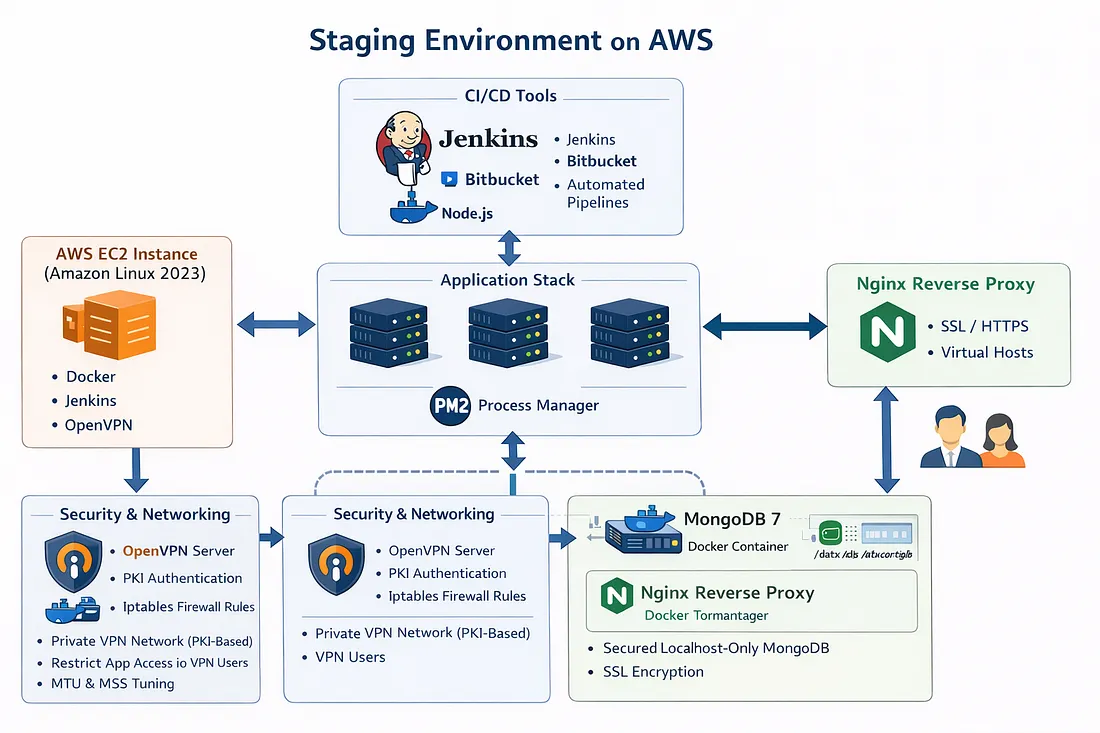
When I first heard the term staging environment, I assumed it was just another server where code is deployed before production. I quickly learned that this assumption was wrong.
A real staging environment forces you to understand Linux internals, memory limits, automation, networking, security, and deployment workflows — all at once. This article is not a motivational story. It is a practical, hands-on guide based on real problems I faced while building a staging environment from scratch.
If you are a beginner and want to understand how real systems are built, this article is for you.
What a Staging Environment Actually Is
A staging environment is a production-like setup used to test real deployments safely. It behaves like production but is isolated so mistakes do not affect real users.
That means:
- Code is deployed in a repeatable way
- Services restart automatically
- Failures are handled, not ignored
- Access is controlled and secure
- Automation replaces manual work
I decided to build everything from zero on a fresh Linux server instead of relying on prebuilt scripts.
Step 1: Preparing the Server Properly
Before installing anything, I updated the system. Skipping this step often causes dependency issues later.
sudo yum update -yInstalling Docker
Docker was used to isolate services and simplify management.
sudo yum install docker -y
sudo systemctl start docker
sudo systemctl enable docker
By default, Docker requires root access. To avoid constantly using sudo, I added the user to the Docker group.
sudo usermod -aG docker ec2-user
exit
After logging back in, Docker commands worked normally.
Step 2: Setting Up Git Access the Right Way
Automation fails if Git asks for passwords. SSH-based authentication is mandatory.
ssh-keygen -t ed25519 -C "automation-key"The public key was copied and added to the Git provider.
cat ~/.ssh/id_ed25519.pubTo verify access:
ssh -T git@bitbucket.orgIf this step fails, nothing else will work reliably.
Step 3: Installing Node.js and Process Management
A stable Node.js version was installed:
curl -fsSL https://rpm.nodesource.com/setup_18.x | sudo bash -
sudo yum install -y nodejs
Then I installed a process manager to keep applications running after crashes or reboots.
sudo npm install -g pm2To make processes start automatically on reboot:
pm2 startup
sudo env PATH=$PATH:/usr/bin /usr/lib/node_modules/pm2/bin/pm2 startup systemd -u ec2-user
At this point, the system looked ready. That confidence did not last long.
Step 4: Running Into Memory Failures
The first application build failed. The second one failed too. Then the server became unresponsive.
The issue was not the code — it was memory.
Checking memory usage:
free -hThe system did not have enough RAM to handle build processes.
Adding Swap Memory
Creating swap space stabilized the system.
sudo fallocate -l 2G /swapfile
sudo chmod 600 /swapfile
sudo mkswap /swapfile
sudo swapon /swapfile
Later, the swap was increased:
sudo swapoff /swapfile
sudo dd if=/dev/zero of=/swapfile bs=1M count=4096
sudo mkswap /swapfile
sudo swapon /swapfile
To make swap persistent:
echo '/swapfile none swap sw 0 0' | sudo tee -a /etc/fstabAfter this, builds stopped crashing unexpectedly.
Step 5: Deploying Code in a Repeatable Way
Instead of running applications manually, I followed a strict workflow.
git clone <repository-url>
cd project
npm install
For memory-heavy builds:
NODE_OPTIONS="--max-old-space-size=3072" npm run buildRunning the application with process management:
pm2 start <start-command> --name project-name
pm2 save
Now, even if the server rebooted, everything came back automatically.
Step 6: Running the Database Safely
The database was isolated using Docker to avoid accidental exposure and simplify recovery.
docker run -d \
  --name database \
  -v data_volume:/data/db \
  --restart unless-stopped \
  mongo:7
This ensured persistent data storage, automatic restarts, and clean separation from the host system.
Step 7: Automating Deployments with Jenkins
Initially, Jenkins was installed directly on the system. That approach failed due to permission and dependency issues.
Running Jenkins inside Docker worked far better.
docker volume create jenkins_home
docker run -d \
  --name jenkins \
  -v jenkins_home:/var/jenkins_home \
  -v /var/run/docker.sock:/var/run/docker.sock \
  -v $(which docker):/usr/bin/docker \
  jenkins/jenkins:lts
Jenkins failed again — this time due to Docker socket permissions.
sudo chmod 666 /var/run/docker.sockThen Jenkins started correctly. To retrieve the initial admin password:
docker exec jenkins cat /var/jenkins_home/secrets/initialAdminPasswordStep 8: Writing Real Deployment Pipelines
Each automated deployment followed the same logic: connect to the server via SSH, navigate to the project directory, switch to the correct branch, pull latest changes, install dependencies, build with memory limits, and restart the process.
Core commands used inside pipelines:
git checkout branch-name
git pull origin branch-name
npm install
NODE_OPTIONS="--max-old-space-size=2048" npm run build
pm2 restart project-name
Every step was logged. No hidden magic.
Step 9: Debugging Real Failures
Some real problems I encountered:
- Builds failing randomly — Fixed by increasing swap and Node heap size.
- Applications not restarting — Checked process names using
pm2 status. - Silent pipeline failures — Fixed by stopping scripts on error with
set -e. - Server freezing under load — Fixed by expanding disk space:
lsblk
sudo growpart /dev/nvme0n1 1
sudo xfs_growfs /
Each failure improved my understanding of system behavior.
What This Project Taught Me
This setup taught me more than any tutorial ever could. I learned why automation is essential, how memory affects builds, how Linux behaves under stress, how real deployments work, and how to debug instead of guessing.
A staging environment is not about tools. It is about thinking like an engineer.
Advice for Beginners
If you are starting out:
- Do not blindly copy configurations
- Monitor memory and disk usage
- Read logs carefully
- Automate repetitive work
- Break things and fix them yourself
That is how real learning happens.